
 Cash Bay SlotsGUIDE 07
Account & settings
Find your profile, sign-in, inbox, rankings and game information.
Profile & avatar
View account information and VIP status, and change your avatar.
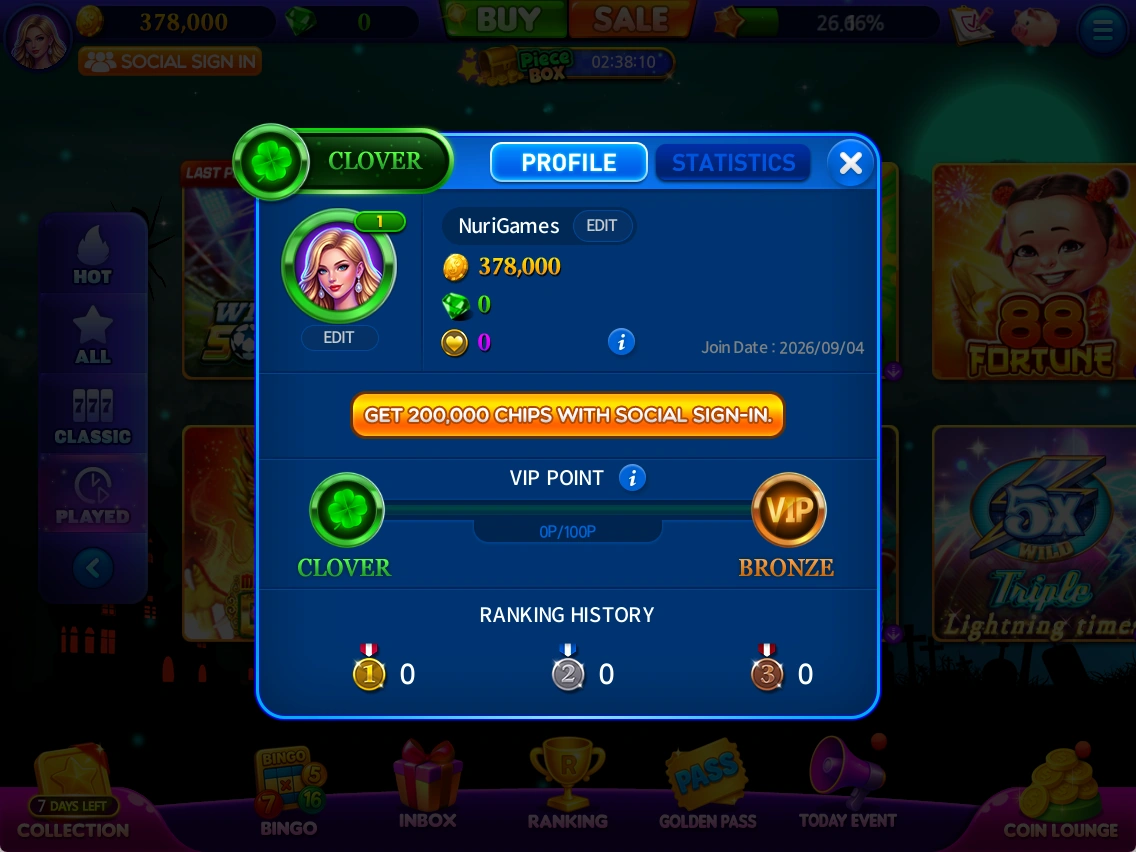
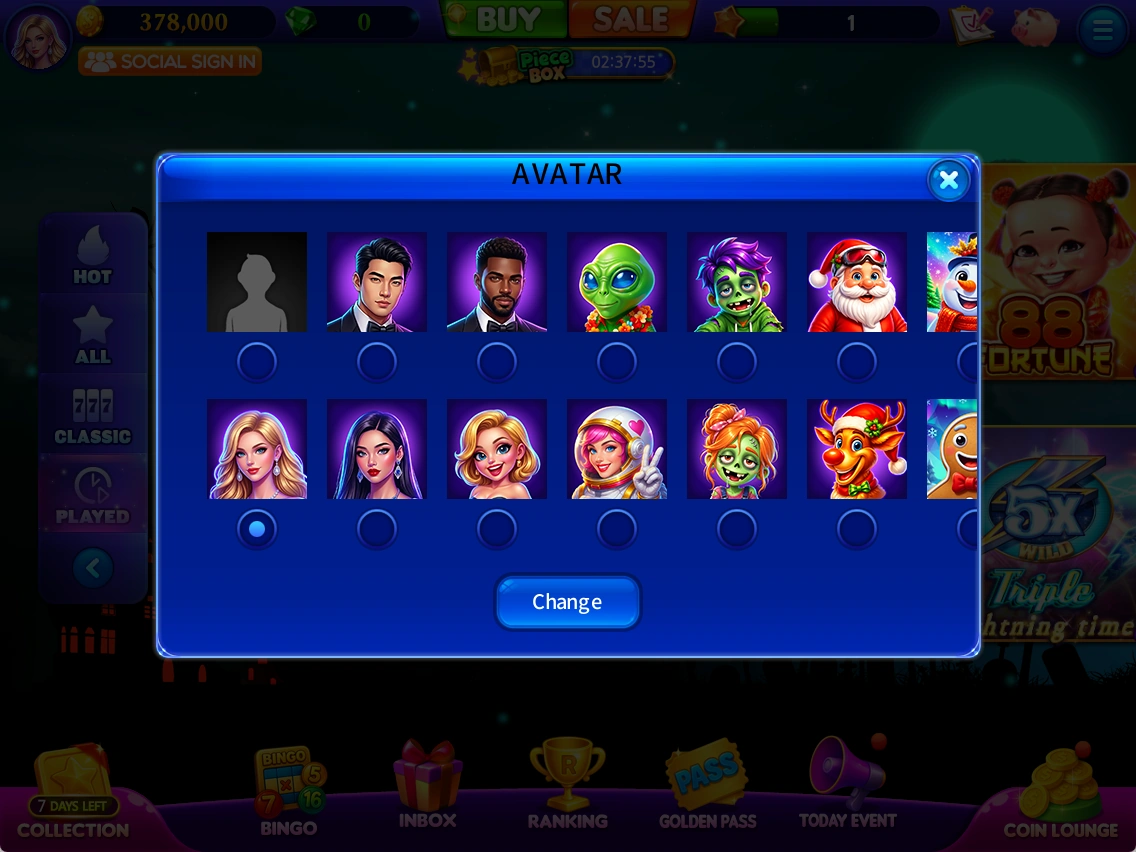
- Open your profile from the lobby. In the avatar selection screen, choose an avatar and select Change.
Your information
Your VIP tier appears at the top of PROFILE. Use EDIT next to your nickname to change it. You can also check your chips, Gems, hearts received and join date.
Use GET 200,000 CHIPS WITH SOCIAL SIGN-IN to link a social account.
Sending and receiving hearts
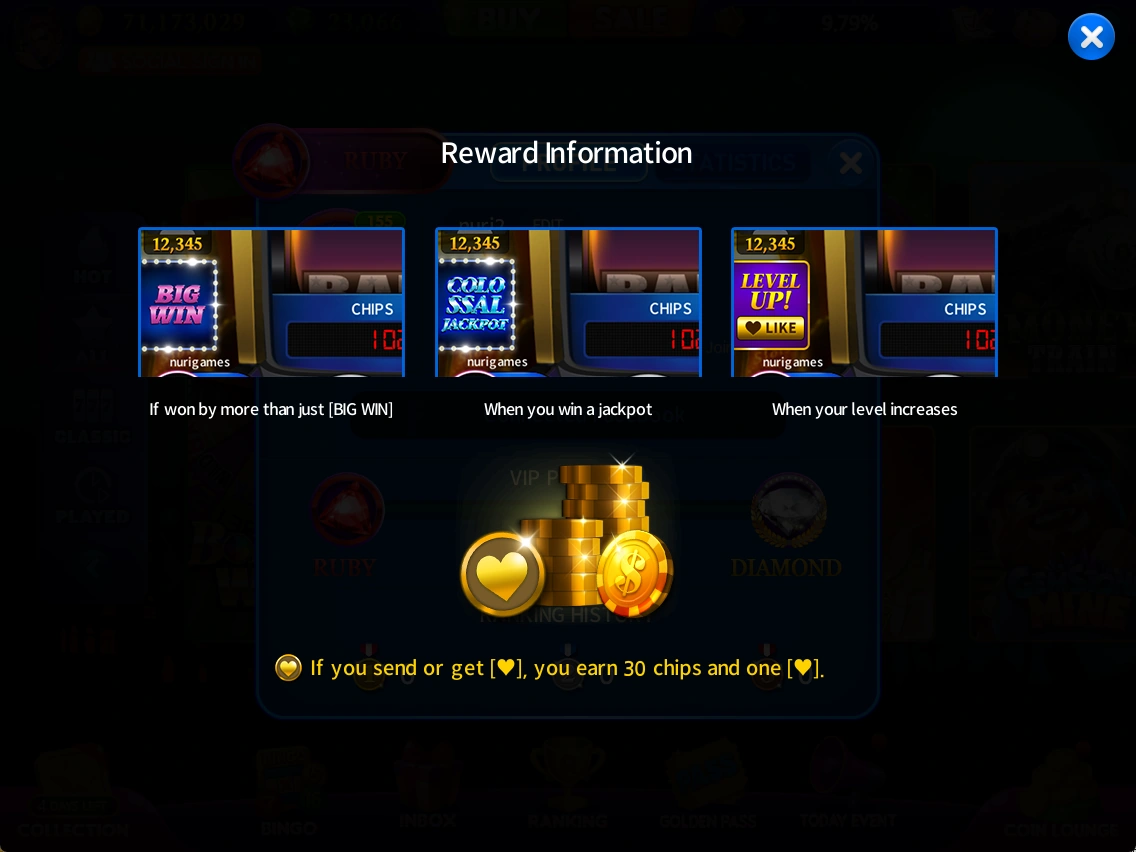
Open the information (i) button beside the heart. Other players can send you hearts for a big win, level-up or jackpot. Receiving a heart also gives you 30 chips. You can send hearts to congratulate other players on the same achievements without spending your own hearts or chips.
Play history
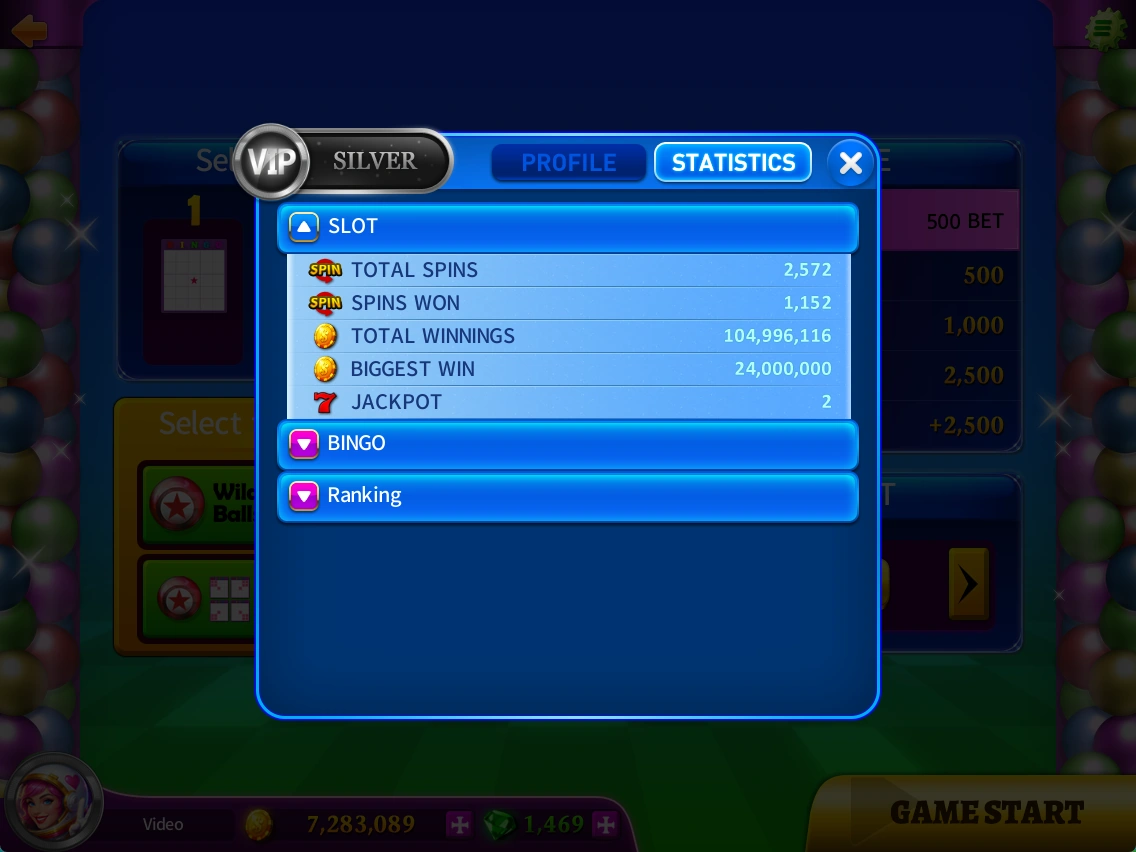
Open STATISTICS to view slot, bingo and ranking records. Expand each dropdown to see the details.
Social sign-in
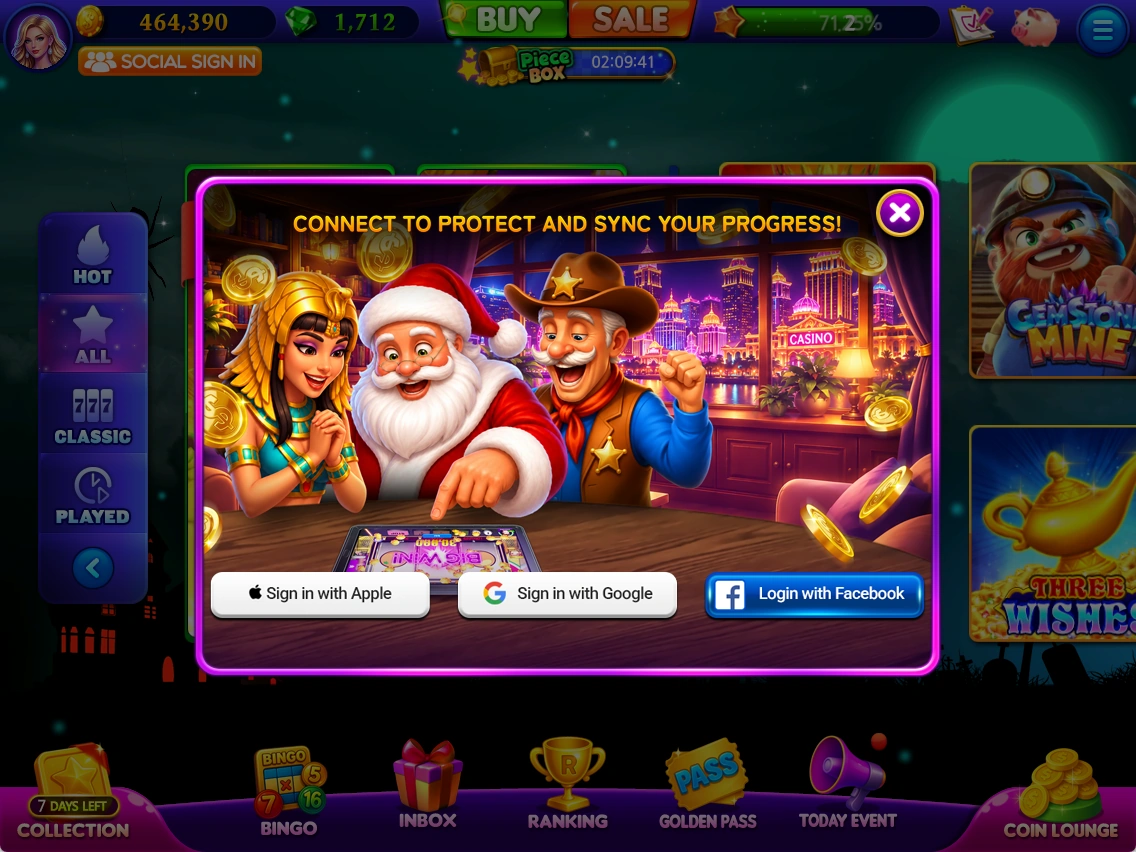
Choose from the account connection methods displayed on the social sign-in screen.
- Select SOCIAL SIGN IN.
- Choose a displayed Apple, Google or Facebook option.
- Confirm the account and follow the in-game instructions.
Inbox
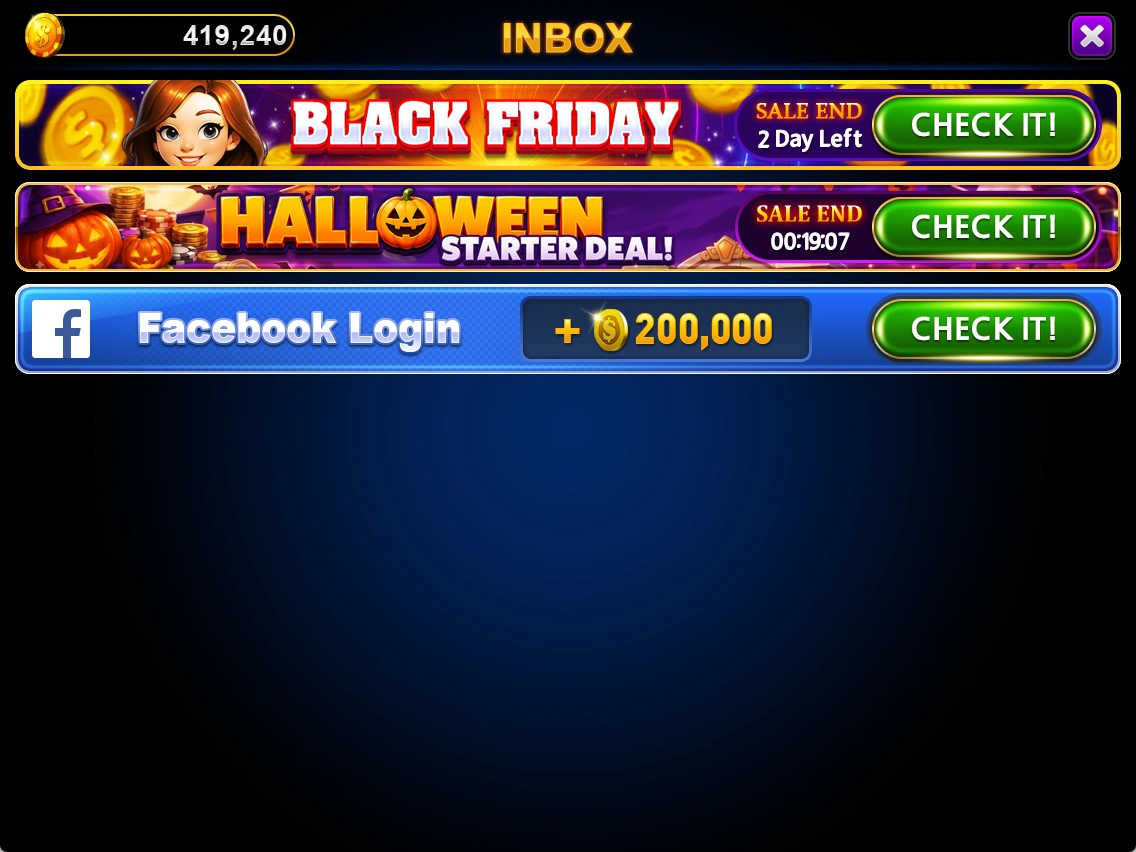
Check gifts and promotional notices in your inbox.
- Open INBOX and read each item.
- Use a button such as CHECK IT to view the relevant notice.
Rankings
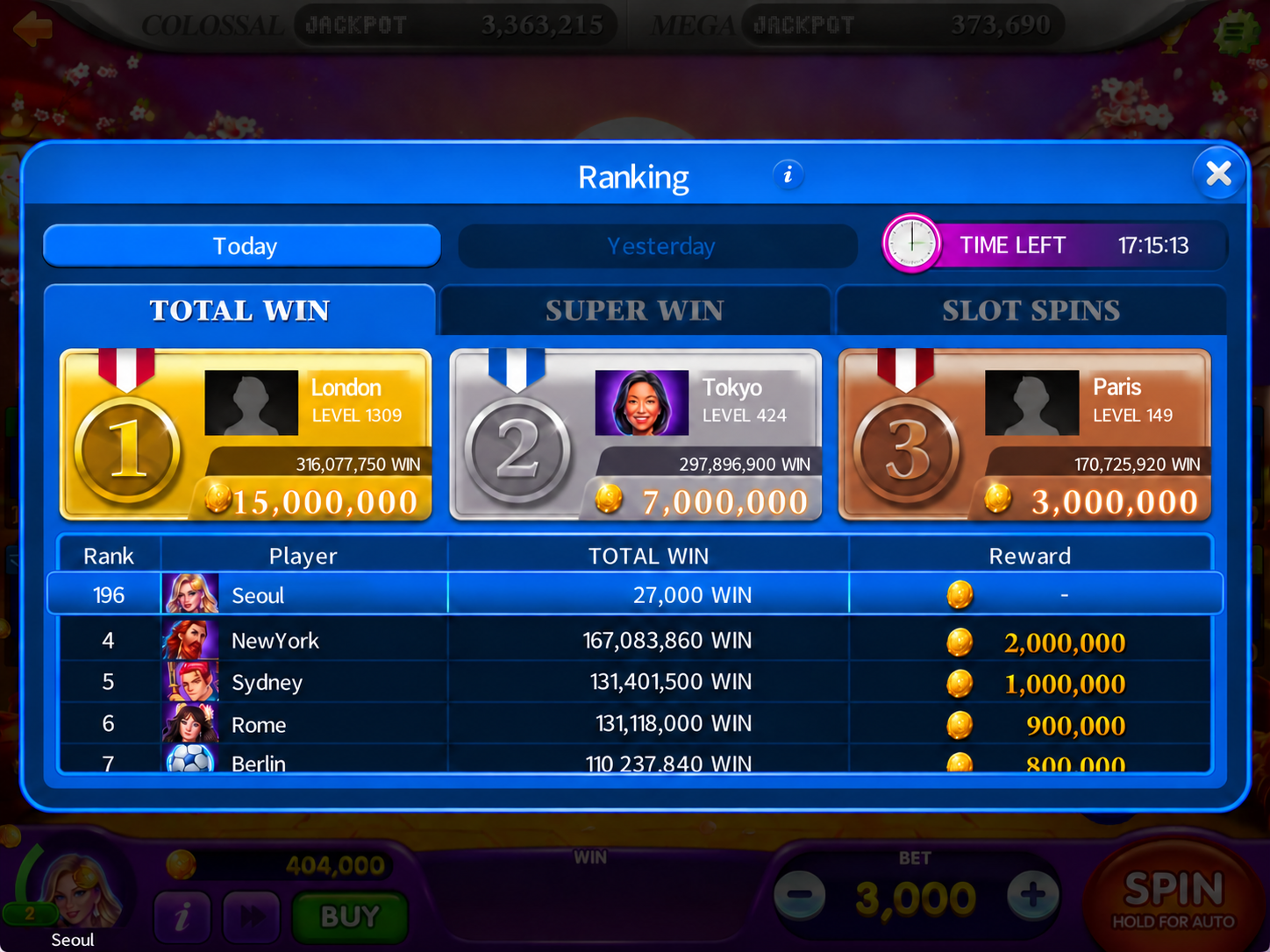
View today's and yesterday's slot rankings. TOTAL WIN ranks cumulative wins for the day, SUPER WIN ranks the largest win and SLOT SPINS ranks spin count.
- Choose Today or Yesterday.
- Choose TOTAL WIN, SUPER WIN or SLOT SPINS.
- Check the ranks and displayed information.
Ranking rewards are awarded daily.
Menu & sound settings
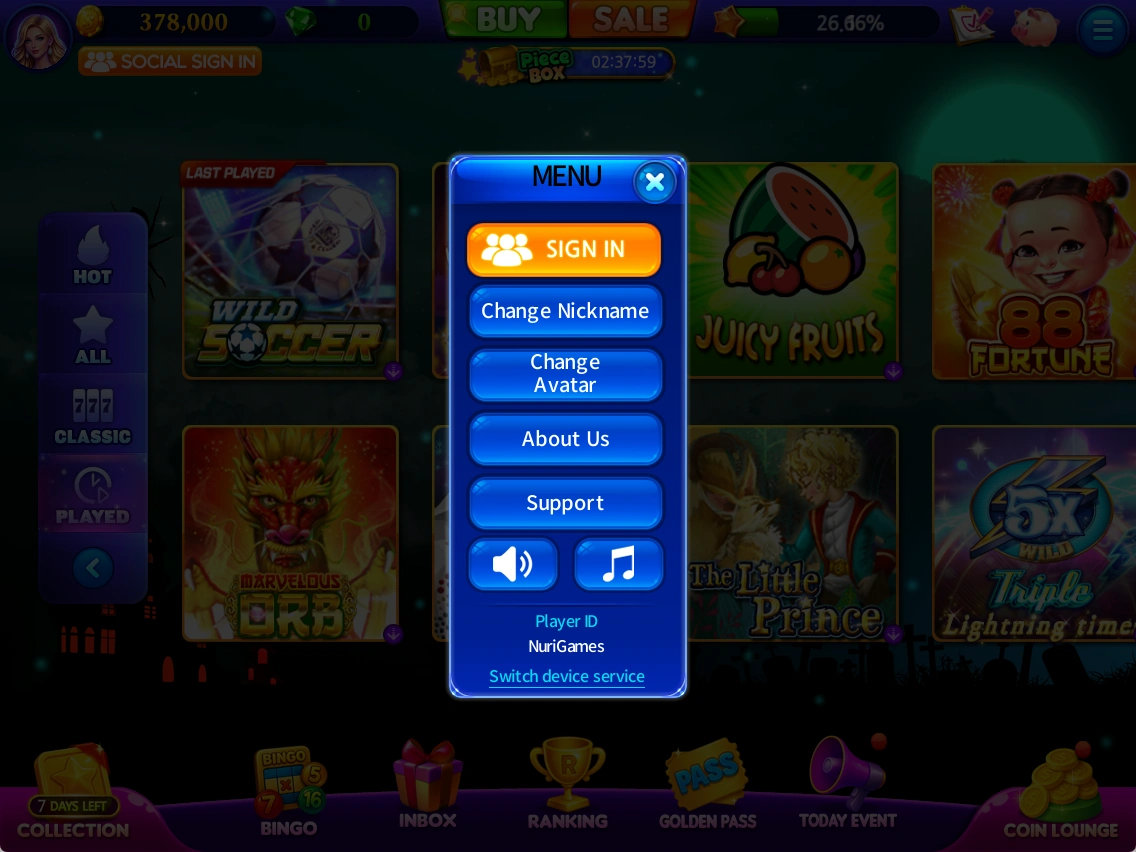
Find sign-in, nickname/avatar changes, game information, support and sound controls in the menu.
- Open the menu and choose a feature.
- Check and adjust sound-related buttons.
- Select Support for help information.
Changing devices
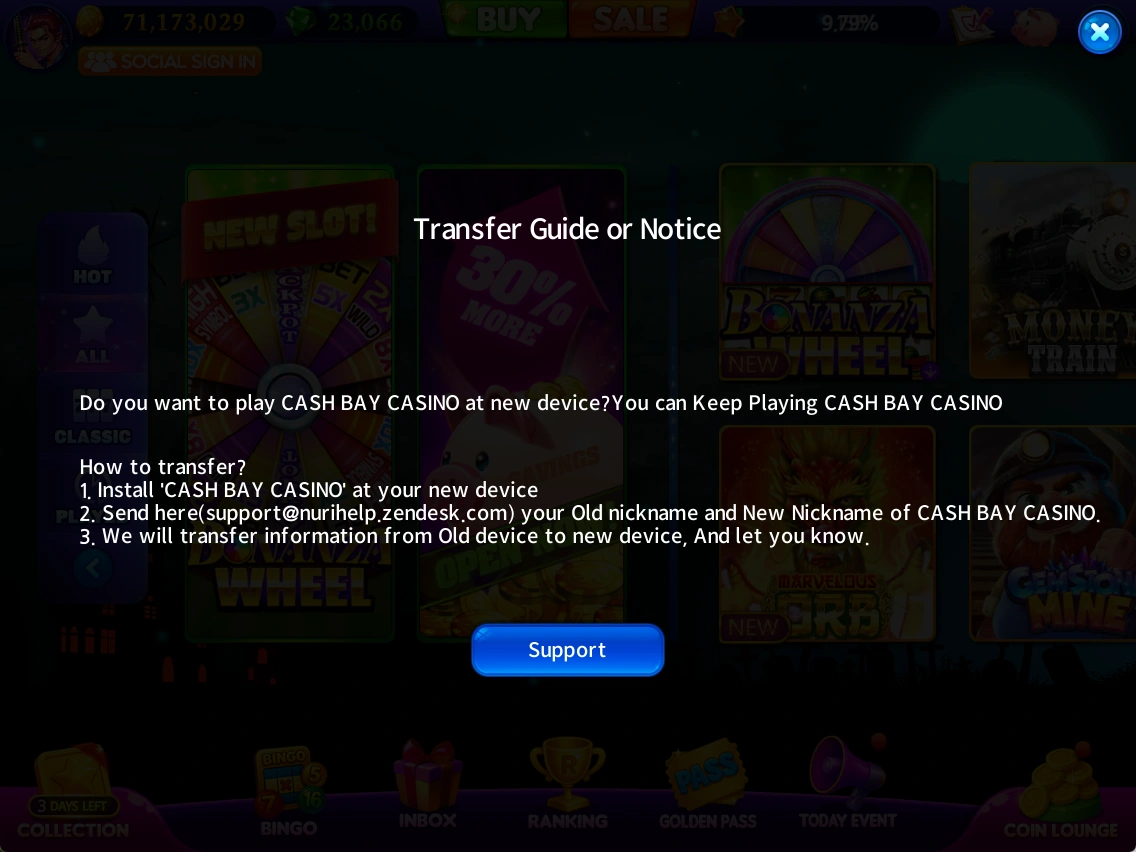
For a guest account, select SWITCH DEVICE SERVICE. Install the game on the new device, then send your old and new nicknames to support@nurihelp.zendesk.com. Support will handle the transfer and let you know.
For a linked social account, sign in with the same social account on the new device to continue playing.
Game information & policies
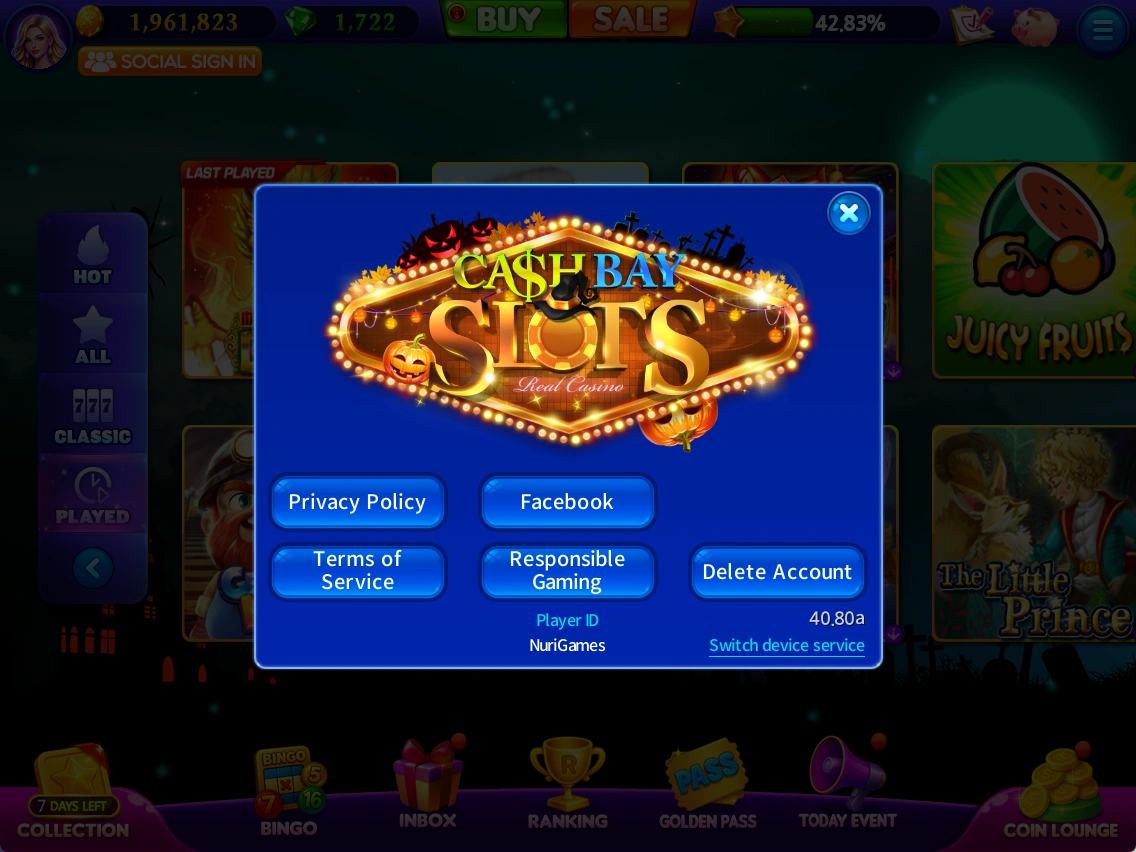
About contains privacy, terms, responsible gaming, account deletion and game version information.
- Check your ID and game version in About Us.
- Choose a policy button to read the relevant information.
- Read the in-game information carefully before selecting account deletion.
See the latest in-game information for prices, rewards, events and applicable conditions.